



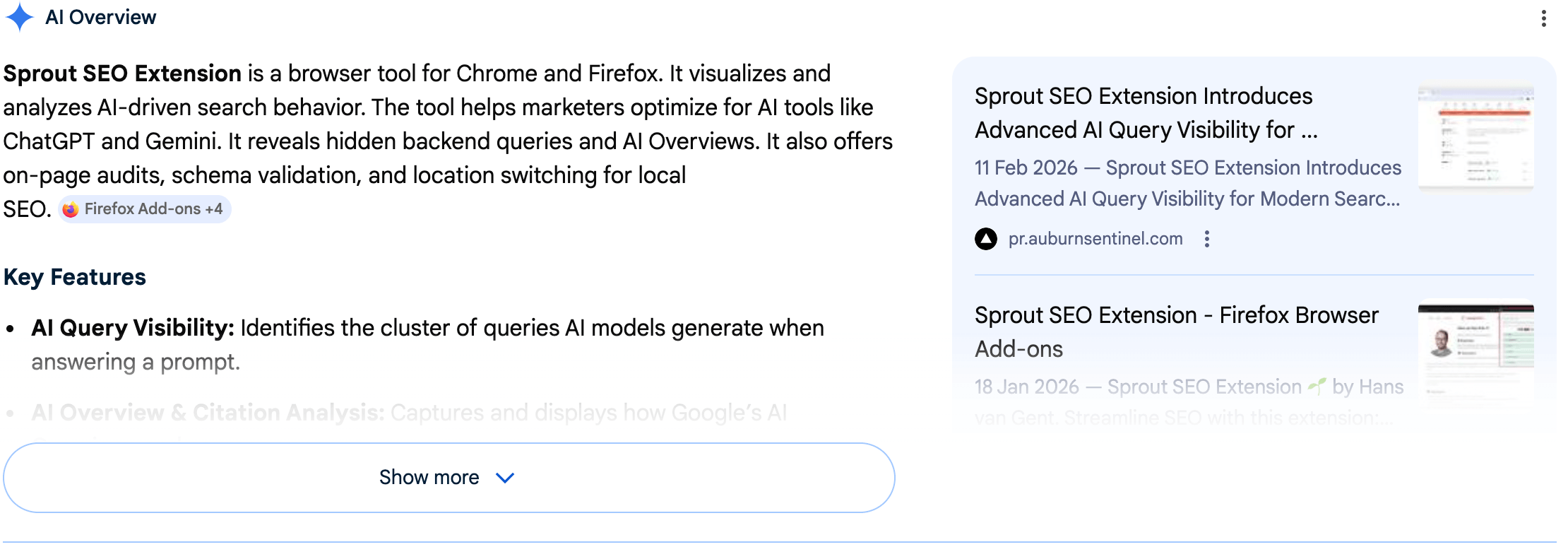
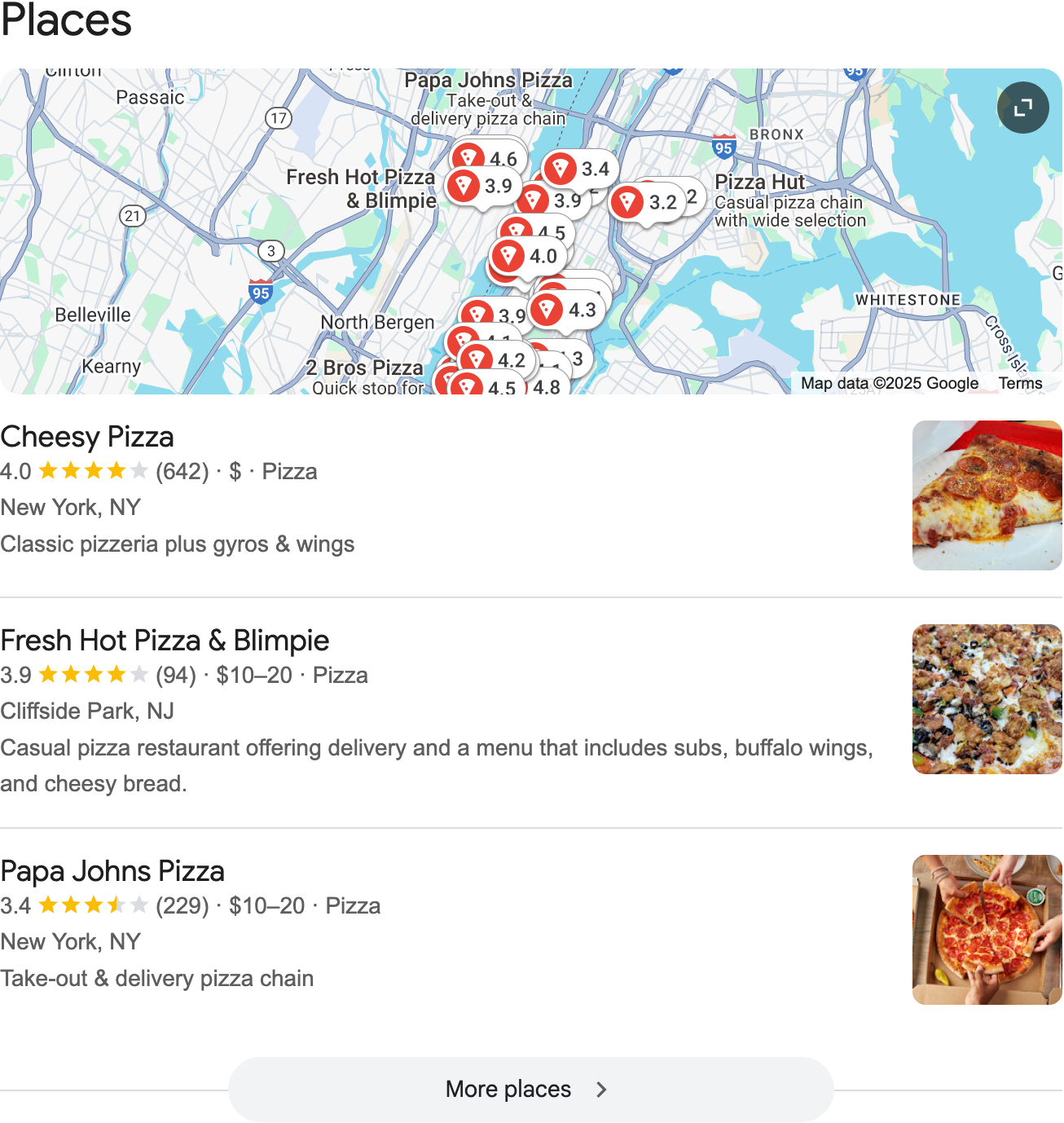
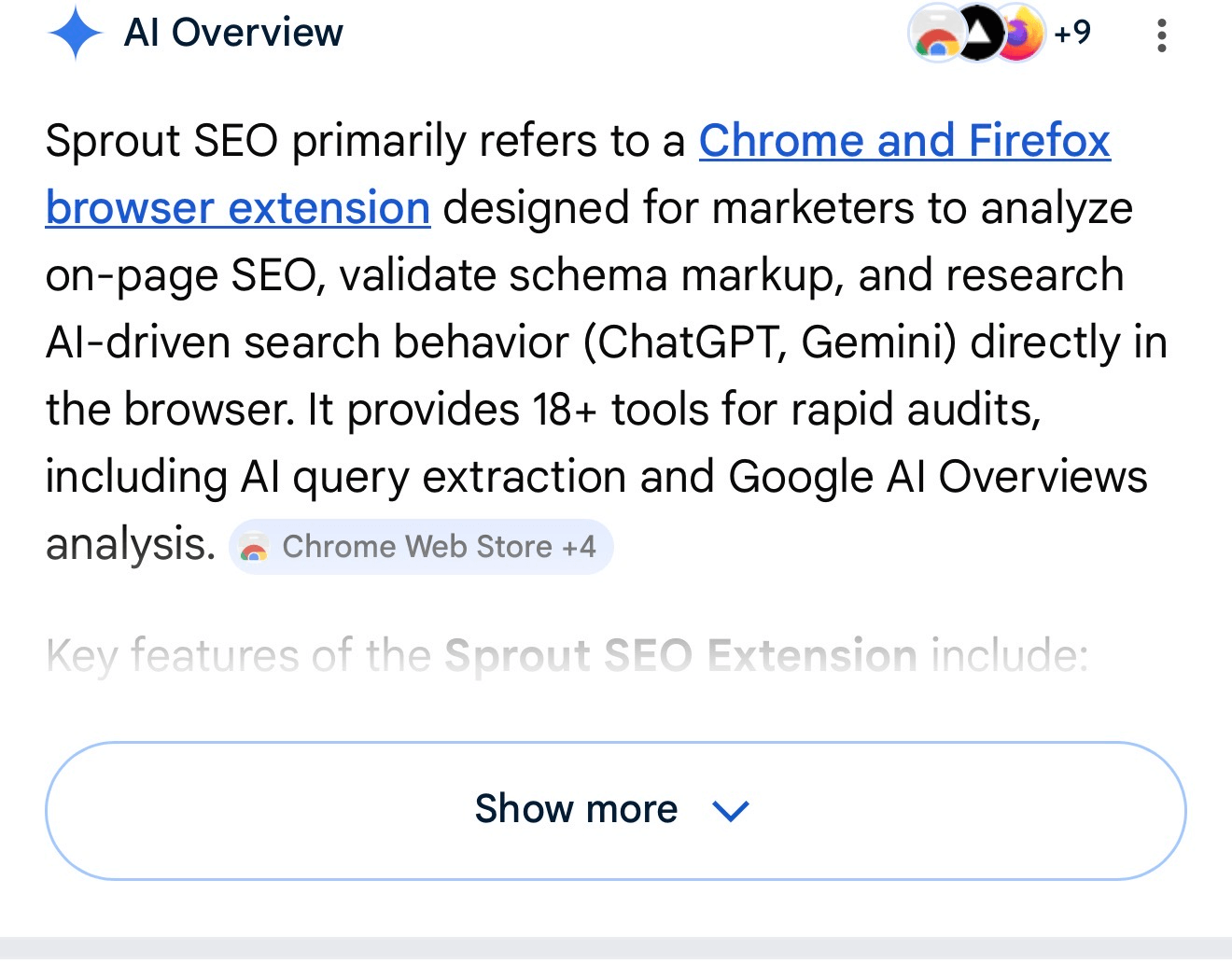
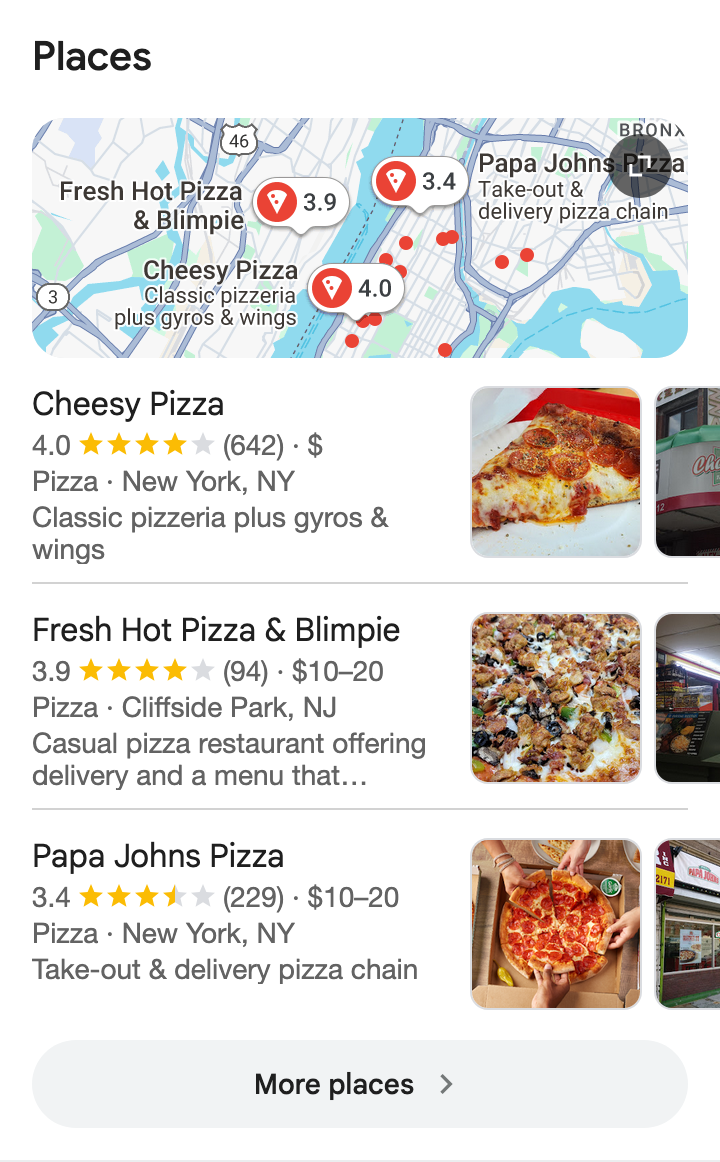
Your search snippet is the first thing people see before they click. If the title gets cut off or the description trails into ellipses, you lose clicks to competitors whose snippets fit. The SERP Preview Tool lets you enter a URL (or type your meta data manually), see a live preview for desktop and mobile, and fix length and wording before you go live.
Use the tool at sproutseo.io/free-seo-tools/serp-preview-tool/ to preview and copy your snippet.
How to Use the SERP Preview Tool
- Enter a target URL and click Fetch to pull the current title, description, and site name from the page, or leave the URL blank and fill the fields yourself.
- Edit Site Name, URL path, SEO Title, and Description in the form. The tool shows character counts and pixel widths so you know when Google would truncate.
- Toggle options (AI Overview, Map pack, Ad, Date, Rating, etc.) to see how your result looks in different SERP layouts.
- Switch between Desktop and Mobile to check both views. Google uses different widths on each; the preview uses the same pixel limits (600px title; 960px desktop / 680px mobile description).
- Copy to clipboard when you’re happy with the snippet and paste it into your CMS or share it with your team.
Tool fields:
- Target URL (Auto-Fetch) – Page URL to fetch existing meta data.
- Site Name – Brand or site name shown in the snippet.
- URL Path – Path segment shown under the title (e.g.
sproutseo.io › free-seo-tools › serp-preview-tool). - SEO Title – Shown in blue in the SERP. Keep within about 600px so it doesn’t truncate (roughly 60 characters, but width varies by character).
- Description – Meta description text. Desktop can show about 960px; mobile about 680px. The tool displays both so you can optimize for the smaller view.
- Rating – Optional star rating for the snippet.
- Favicon – Displayed next to the URL in the SERP.
Options you can toggle: AI Overview, Map pack, Ad, Tag, Date, Stars. Use these to see how your organic result looks when ads, local results, or AI answers appear above it.
TL;DR
A SERP preview tool shows how your title tag and meta description will look in Google search results before you publish. Google truncates by pixel width, not just character count: titles around 600px, descriptions about 960px on desktop and 680px on mobile. Keeping your snippet within those widths avoids cut-off text and helps improve click-through rate. Use a preview tool to test desktop and mobile, add optional elements like date or stars, and copy the final snippet. Every page should have a unique, relevant title and description that fits the preview.
Why Your SERP Snippet Matters
Being found in Google is only half the job. The other half is getting the click. Your snippet (title + URL + description) is your ad in the results. If it’s vague, too long, or doesn’t match the query, people choose another result.
A SERP preview tool helps you:
- Avoid truncation so the full title and description show when possible.
- Optimize for mobile where less space is available.
- Improve CTR by testing wording and length before publish.
- Stay consistent with pixel-based limits (600px title; 960px / 680px description) the way Google actually uses them.
What Is a Search Snippet?
A search snippet is the block Google shows for one result: usually a title (from your title tag or on-page content), the URL (often with breadcrumbs), and a description (from your meta description or an extract from the page). Snippets can be extended with structured data (e.g. ratings, dates, FAQ, product info). If you don’t provide a good meta description, Google may generate one from your content, which may be less compelling or accurate.
Title and Description: Length and Best Practices
Title tag (SEO Title)
- Google typically uses about 600 pixels for the title. Character count is a rule of thumb (often cited as ~60 characters); actual cut-off depends on character width (e.g. “W” vs “i”).
- Put the most important keywords and message at the start so they’re visible when the title is truncated.
- Keep it relevant to the page and the query, unique per page, and compelling so people want to click.
- The tool shows “Title too long for SERP” when your title exceeds the target width so you can shorten it before publishing.
Meta description
- Desktop: about 960px of text.
- Mobile: about 680px (less than desktop). Many users search on mobile, so optimizing for the shorter width is important.
- Descriptions are often discussed as ~155–160 characters; in practice Google uses pixel width, so the tool gives you both character and pixel feedback.
- Use the Capitalize sentence option if you want to preview a specific capitalization style.
- The tool shows “Description too long” when the text exceeds the relevant width so you can trim it.
Three things to aim for
- Relevance – Match the search intent and include the main topic or keyword.
- Uniqueness – One distinct title and description per page; no copy-paste across the site.
- Clarity and appeal – Explain what the page offers and why someone should click (benefit, specificity, or a clear next step).
What to Avoid
- Keyword stuffing – Don’t repeat the same phrase or pack irrelevant keywords into the title or description.
- Generic or duplicate descriptions – Avoid the same meta description on many pages or vague text like “Welcome to our site.”
- Ignoring mobile – If you only check desktop, you may miss truncation on mobile where the description is shorter.
- Misleading copy – Titles or descriptions that don’t match the page content hurt trust and can lead to lower rankings or manual actions.
How Google Uses Pixel Width (Not Just Characters)
Many guides say “60 characters for the title” or “155 characters for the description.” Google actually truncates by pixel width. A title full of “W” and “M” will be cut sooner than one full of “i” and “l.” The SERP Preview Tool uses the same logic: 600px for the title, 960px for the description on desktop, and 680px for the description on mobile. That way you see a realistic preview and can adjust until nothing important is cut off.
Controlling How Your Snippet Appears
You can influence what Google shows with meta tags and markup:
- noindex – Request that the page not be shown in search results.
- noarchive – Ask Google not to show a cached link for that result.
- nosnippet – Ask Google not to use a text snippet for the description.
- data-nosnippet – On specific parts of the page (e.g. in a
divorspan), you can tell Google not to use that text for the snippet.
For full details, see Google’s robots meta tag and snippet directives.
Structured data (e.g. FAQ, Product, Local Business, Review) can extend the snippet with stars, dates, or other rich results. Implement only markup that matches your content and follow Google’s structured data guidelines.
Who Should Use a SERP Preview Tool?
- SEO professionals – Check snippets before launch and when optimizing for CTR.
- Content and copywriters – See how titles and descriptions look in real SERP layout.
- Site owners and marketers – Ensure every important page has a clear, non-truncated snippet on desktop and mobile.
- Agencies and teams – Share a preview or copied snippet with clients or stakeholders before updating the live site.
Frequently Asked Questions
Will my preview look exactly like Google?
The tool uses the same pixel limits Google uses for titles and descriptions (600px title; 960px desktop / 680px mobile description), so truncation should match. Actual display can still vary by device, font, and SERP features (ads, AI Overview, etc.). The preview is a close, practical approximation.
Why use pixel width instead of character count?
Google truncates by pixel width. Character counts (e.g. 60 or 155) are rough guides; wide characters shorten the visible text, narrow characters allow more. Pixel-based previews match Google’s behavior more accurately.
Do I need a unique title and description for every page?
Yes. Each page should have its own title and description that reflect its content. Unique, relevant snippets help both users and search engines and improve the chance your meta description is used instead of an auto-generated one.
Can I fetch meta data from a URL?
Yes. Enter the target URL in the SERP Preview Tool and click Fetch to pull the current title, description, and related data from the page so you can edit and preview in one place.
What are the optional toggles (AI Overview, Map pack, Ad, etc.) for?
They let you simulate different SERP layouts. For example, with “AI Overview” or “Map pack” on, you see how your organic result looks when those elements appear above it. That helps you judge visibility and whether your snippet still stands out.
Is the SERP Preview Tool free?
Yes. The tool is free to use at sproutseo.io/free-seo-tools/serp-preview-tool/. No sign-up required.
Your snippet is your first impression in search. Preview it for desktop and mobile, keep title and description within pixel limits, and make every line count. Use the SERP Preview Tool to see how your page will look in Google before you publish.