


A page can rank nowhere even when the writing is solid, simply because Google never indexed it. The assumption underneath the problem feels reasonable: you hit publish, so the page must be live in search.
Publishing and indexing are two separate events, though, and the gap between them can stretch from hours to never. Learning how to check if a page is indexed is the fastest way to tell a content problem apart from a plumbing one.
This guide covers three reliable checks, then shows you how to find the directive quietly blocking a page from the index.
What “indexed” actually means
Indexing is one stage in a three-step pipeline, and confusing the stages is where most diagnostic mistakes start. Google first crawls a page (a bot fetches the URL and reads its content), then decides whether to index it (store a processed copy in its database), and only indexed pages are eligible to rank.
A page can be crawled and still never indexed, and a page can be indexed and still rank nowhere useful, so a tool that only confirms “Google fetched your URL” tells you nothing about whether the page can be found.
This matters because “not ranking” and “not indexed” demand different fixes. A page that is indexed but buried has a relevance, authority, or competition problem you solve with on-page work and links.
A page that is not indexed is not in the running, so no keyword tuning will help. Checking index status first saves you from optimizing a page Google never agreed to store.
Method 1: the site: search operator
Here are the three methods this guide covers, in the order you should use them:
- The site: search operator for a quick, no-login spot check.
- The URL Inspection tool in Google Search Console for the authoritative answer.
- The browser directive check to find what is blocking a page that should be indexed.
The site: operator is the quickest of the three because it needs no account and no setup. Type site: immediately followed by the full URL into Google, with no space, like site:example.com/your-page/.
If the page appears, it is indexed. If you get “Your search did not match any documents,” the page is almost certainly not in Google’s index for that URL.
Treat this as a fast signal rather than a verdict. The site: operator queries a sampled, approximate slice of the index rather than your verified property data, so results can lag reality and occasionally miss pages that are in fact indexed, and it cannot tell you why a missing page is missing.
When the answer matters, confirm it with Method 2.
Method 2: the URL Inspection tool in Search Console
The URL Inspection tool is the authoritative check because it reads directly from Google’s own index data. Find it at the top of Google Search Console: paste the full URL into the inspection bar, and the tool returns the status of the most recently indexed version of that page.
You can only inspect URLs inside a property you own, so this is the check for your own site, not a competitor’s.
The headline result is one of two states, and Google’s documentation is precise about each. According to Google’s URL Inspection tool documentation, “URL is on Google” means the page is eligible to appear in search results but is not guaranteed to be there, while “URL is not on Google” means it cannot appear at all.
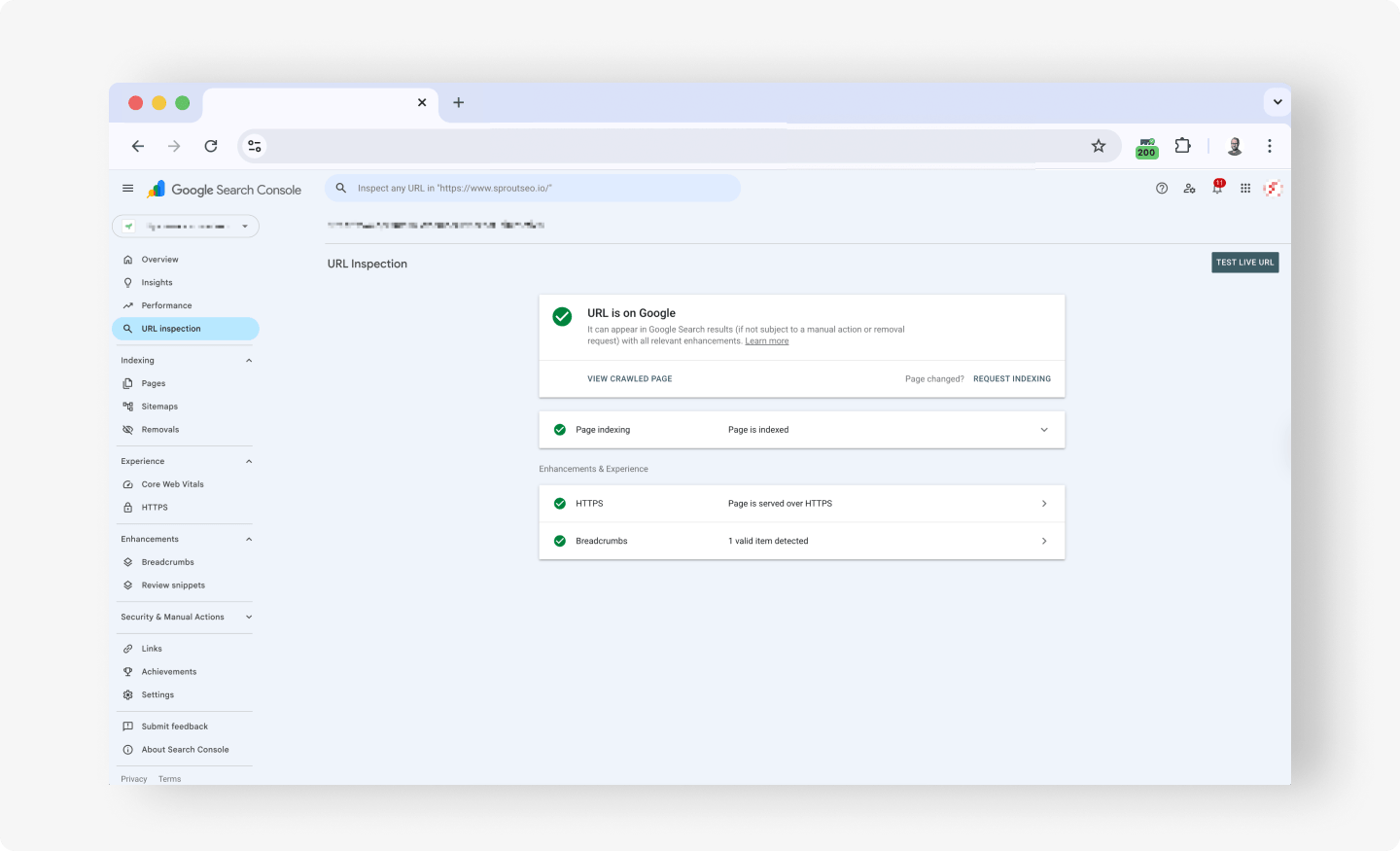
The distinction matters: “on Google” confirms indexing, not ranking, so a page can be indexed and still sit on page ten.
When a URL is not on Google, the reason is usually one expandable click away. Open the Page indexing section: the Crawl subsection is where Google records the obstacle it hit, whether a fetch error, a robots block, or a directive telling it to stay out.
The result is not a live test, since it reflects the page as Google last saw it, so run the Live Test to check the current page and use Request Indexing to nudge a fixed page back into the queue. There is a daily inspection limit per property, so batch your checks.
Method 3: checking index-blocking directives in the browser
The first two methods tell you whether a page is indexed; this one tells you why it is not. When Search Console reports “URL is not on Google” but the content looks fine, the cause is almost always a directive: a meta tag, an HTTP header, a robots.txt rule, or a canonical pointing somewhere else.
The traditional way to find these is to scan the raw HTML in page source, which is slow and easy to misread. A faster path is to read the same signals through a browser extension that surfaces them on the live page.
noindex, robots.txt, and canonicals seen in the Sprout SEO extension
The three directives that most often block indexing are a noindex instruction, a robots.txt disallow, and a canonical tag.
The Sprout SEO extension’s Page Info tab pulls the page’s meta robots value, its X-Robots-Tag HTTP header, and the declared canonical URL into one view, so you read all three on the live page rather than in source code.
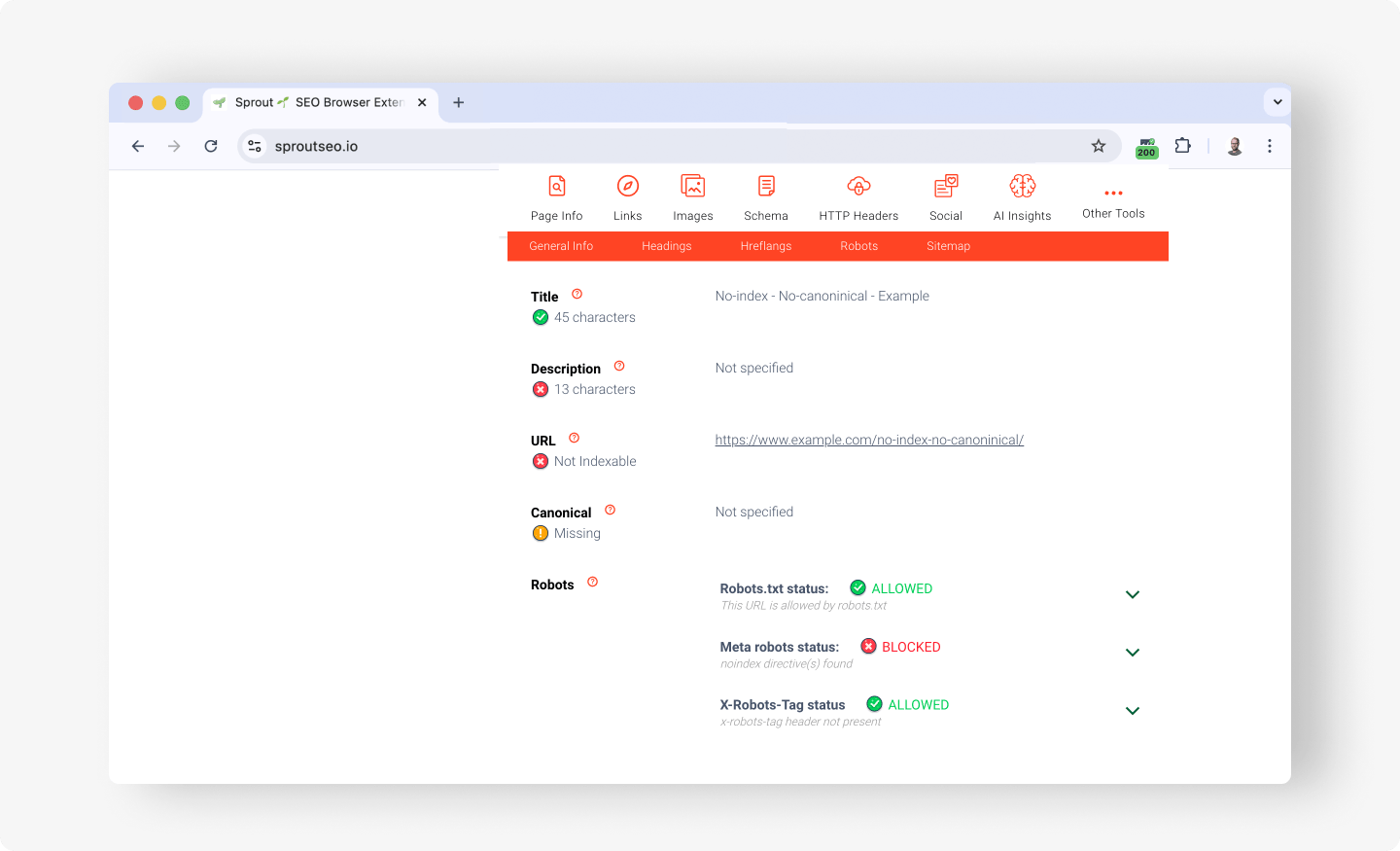
Read the signals in order. First, check for a noindex directive: if the meta robots tag or the X-Robots-Tag header says noindex, Google drops the page even when every other signal is perfect, which makes it the single most common silent blocker.
Second, check the canonical: one pointing to a different page tells Google “index that page instead of this one,” the same effect a redirect sending Google elsewhere produces, only without a status code change.
Third, confirm the page is not disallowed in robots.txt, also easy to spot using the Sprout SEO extension as you can see in the screenshot, because a crawl block stops Google from reading it at all.
Why a page is not indexed (and how to fix it)
Most non-indexing traces back to a short list of causes, and working through them in order resolves most cases. The first suspect is a noindex tag, the most direct instruction you can give Google and the one most often left on by accident from a staging template or CMS default.
The fix is to remove the noindex from the page’s meta robots tag or X-Robots-Tag header, then request indexing.
The second suspect is a robots.txt block, which surprises people. A disallow stops Google from crawling the URL, so it never reads the page and never sees a noindex even when one is present.
Google’s documentation is explicit that when a page is blocked by robots.txt, the “Indexing allowed?” check always reports “Yes,” and the page can still appear in search results because Google cannot see and respect the noindex it would otherwise obey. If you want a page indexed, make sure robots.txt is not disallowing it.
The third suspect is a canonical pointing elsewhere. When a page declares another URL as its canonical, Google consolidates signals onto that target and often skips indexing the original.
The classic case is a new section that sat unindexed for weeks because its template canonical still pointed at the homepage, so Google read every page as a duplicate of the front page. Set each page’s canonical to its own URL unless you want it consolidated elsewhere.
The fourth suspect is thin or duplicate content. Google is selective about what it stores, so pages that closely duplicate others, or carry little unique value, may be crawled and then left out, which Search Console reports as “Crawled, currently not indexed.”
Make the page substantively more useful and distinct than whatever Google compares it against.
The fifth and gentlest suspect is that the page is simply too new: Google does not index on a fixed schedule, so confirm there is no blocking directive, submit the URL, and give it time before assuming something is broken.
In short
Three takeaways carry the whole process. Use the site: operator for a quick spot check and the URL Inspection tool for the authoritative answer.
Most non-indexing traces back to a noindex tag, a robots.txt block, or a canonical pointing elsewhere, not to a content problem. So check the directives before you touch the writing, because optimizing a page Google has refused to index is wasted effort.
Indexing is the foundation of technical SEO: get it right before you tune anything else.
When a page is not on Google, inspect its indexability signals (meta robots, X-Robots-Tag, robots.txt, and canonical) in one view with the free Sprout SEO browser extension, then fix the directive keeping it out.
[…] causes a page to fall out of the index, pairing the status check with a look at whether the page is actually indexed tells you whether the redirect, a canonical, or something else is keeping it […]